How to Configure a Generic OIDC Provider
This guide covers connecting luci-sso to any standards-compliant OIDC provider — Azure AD, Okta, Dex, Zitadel, or others. If your provider has a dedicated guide in the sidebar (Google, GitHub, Authelia, Keycloak, Authentik, Pocket ID), use that instead; it covers provider-specific setup steps and gotchas.
Prerequisites
Your identity provider must support:
- OIDC Core 1.0 — authorization code flow with
/.well-known/openid-configurationdiscovery - PKCE (RFC 7636) —
S256method.luci-ssorequires PKCE; providers that only support theplainmethod or no PKCE at all will not work. - RS256 or ES256 signatures for ID Tokens. HS256 is not accepted.
If your provider requires PKCE to be explicitly enabled on the client, enable it before proceeding.
Step 1: Find your issuer URL
The issuer URL is the base URL of your provider's OIDC configuration. It must serve a discovery document at <issuer_url>/.well-known/openid-configuration.
Common patterns:
| Provider | Issuer URL pattern |
|---|---|
| Azure AD | https://login.microsoftonline.com/<tenant-id>/v2.0 |
| Okta | https://<org>.okta.com or https://<org>.okta.com/oauth2/<server> |
| Dex | https://dex.example.com |
| Zitadel | https://zitadel.example.com |
Verify the discovery endpoint is reachable before proceeding:
curl -s https://<issuer_url>/.well-known/openid-configuration | python3 -m json.tool
The response should be a JSON document containing authorization_endpoint, token_endpoint, and jwks_uri.
Step 2: Register luci-sso as an OAuth client
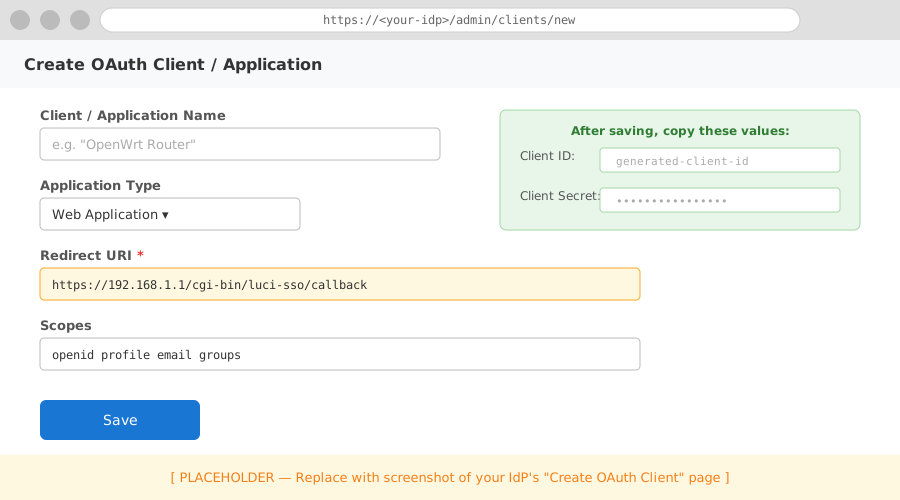
In your IdP's admin interface, create a new OAuth2 / OIDC client (sometimes called an "Application" or "Relying Party").
Set the following values:
| Field | Value |
|---|---|
| Application type | Web application (confidential client) |
| Redirect URI | https://<YOUR_ROUTER_IP_OR_DOMAIN>/cgi-bin/luci-sso/callback |
| Scopes | openid profile email — add groups if you want group-based role mapping |
After saving, copy the generated Client ID and Client Secret.
Step 3: Configure the router
Navigate to Services > SSO Login.
Fill in the Settings section:
| Field | Value |
|---|---|
| Enable SSO | On |
| Issuer URL | https://<your-issuer-url> |
| Client ID | Your Client ID from Step 2 |
| Client Secret | Your Client Secret from Step 2 |
| Redirect URI | https://<YOUR_ROUTER_IP_OR_DOMAIN>/cgi-bin/luci-sso/callback |
| Scopes | openid profile email |
| Clock Tolerance | 60 |
For split-horizon setups, also fill in Internal Issuer URL. See How to Configure Split-Horizon Networking.
Click Save & Apply.
A minimal working configuration:
uci set luci-sso.default.issuer_url='https://<your-issuer-url>'
uci set luci-sso.default.client_id='<YOUR_CLIENT_ID>'
uci set luci-sso.default.client_secret='<YOUR_CLIENT_SECRET>'
uci set luci-sso.default.redirect_uri='https://<YOUR_ROUTER_IP_OR_DOMAIN>/cgi-bin/luci-sso/callback'
uci set luci-sso.default.scope='openid profile email'
uci set luci-sso.default.clock_tolerance='60'
uci set luci-sso.default.enabled='1'
uci commit luci-sso
For all available options (including internal_issuer_url for split-horizon setups), see the UCI Configuration Reference.
Step 4: Configure role mapping
After a successful login, luci-sso maps the user's OIDC claims to a LuCI role. Without a matching role, the user is denied access even if authentication succeeds.
Map by email
Navigate to Services > SSO Login and scroll to the Users section.
Click Edit on the admin role (or Add to create it). In the modal, enter the email address in Email Addresses, then click Save.
Click Save & Apply.
uci add_list luci-sso.admin.email='user@example.com'
uci commit luci-sso
Map by group
If your IdP returns a groups claim (requires the groups scope and IdP-side group claim mapping):
Navigate to Services > SSO Login and scroll to the Users section.
Click Edit on the admin role (or Add to create it). In the modal, enter the group name in Groups, then click Save.
Click Save & Apply.
uci add_list luci-sso.admin.group='router-admins'
uci commit luci-sso
The role name (admin above) must match a config role section in /etc/config/luci-sso. The default installation creates an admin role with full read and write access. For fine-grained access control, see the UCI Configuration Reference.
Step 5: Verify
Check that the service is active:
curl -sk https://localhost/cgi-bin/luci-sso?action=enabled
# Expected: {"enabled":true}
Then open the LuCI login page in a browser.
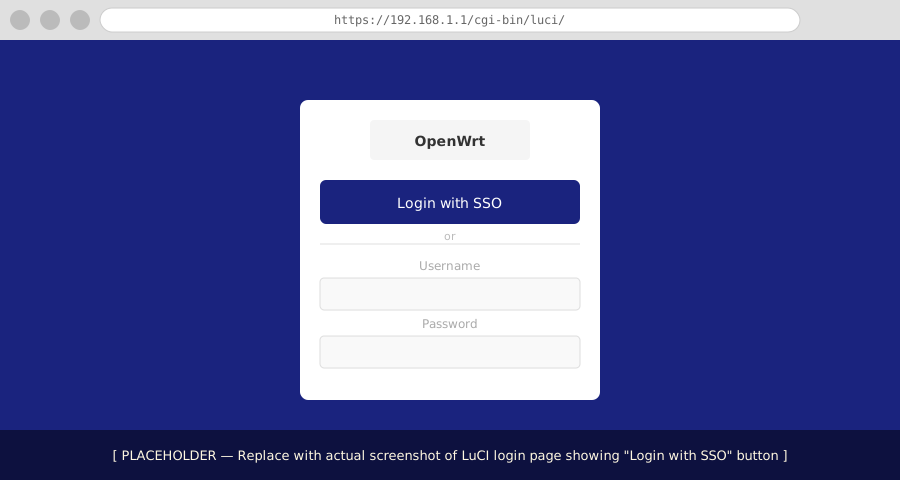
The Login with SSO button should appear. Clicking it redirects to your IdP's login screen. After authenticating, you should be redirected back to the LuCI dashboard.
Troubleshooting
If the login fails, check the system log:
Navigate to Status > System Log and filter for luci-sso.
logread -e luci-sso
Common errors and their meaning are listed in the Log Messages Reference. The most frequent issues with new providers are:
DISCOVERY_ISSUER_MISMATCH— Theissuer_urlyou configured doesn't exactly match theissuerfield in the discovery document. Copy the value from the discovery JSON directly.UNSUPPORTED_ALGORITHM— The IdP is signing tokens with HS256. Configure the client to use RS256 or ES256.USER_NOT_AUTHORIZED— Authentication succeeded but no UCI role matched the user's email or groups (the log line before this code will say "matched no roles"). Add the user's email withuci add_list luci-sso.admin.email='...'.OIDC_DISCOVERY_FAILED— The router cannot reach the IdP. Check DNS resolution and firewall rules from the router (not just from your laptop).