How to Remove luci-sso
This guide covers completely removing luci-sso from your router and restoring the standard LuCI password login.
Step 1: Remove the Packages
Choose your preferred method below to remove the software.
- Log in to your router's LuCI web interface.
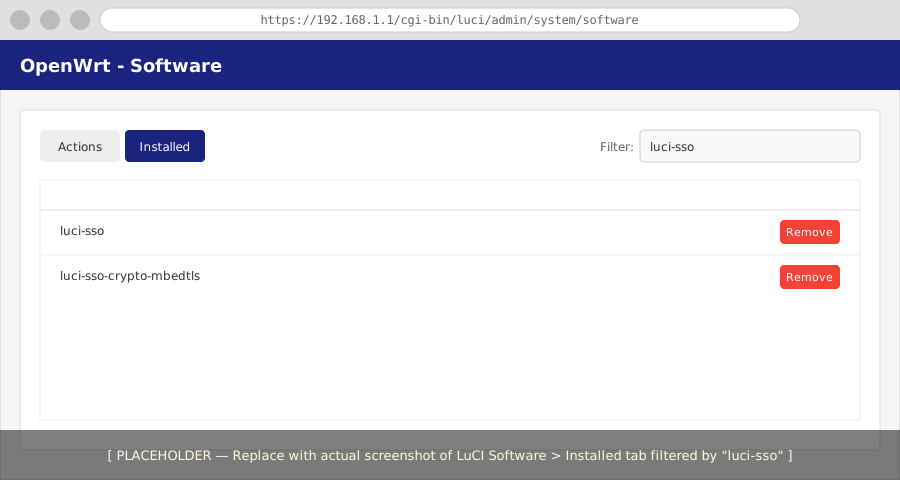
- Navigate to System -> Software.
- Click the Installed tab.
- In the Filter box, type
luci-sso. - Click Remove next to
luci-sso. - Find your crypto backend (e.g.,
luci-sso-crypto-mbedtls) and click Remove.
- Remove the main package and its crypto backend:
opkg remove luci-sso luci-sso-crypto-mbedtls - If you installed a different backend, replace
luci-sso-crypto-mbedtlswith the one you used (e.g.,luci-sso-crypto-wolfssl).
Step 2: Confirm the login page is restored
Navigate to https://<YOUR_ROUTER>/cgi-bin/luci/. The SSO button should be gone, and only the standard username and password fields should be visible.
If the SSO button is still showing, the LuCI cache may not have cleared automatically. You can force a refresh:
- In System -> Software, click Update lists... (this often triggers a cache check).
- Or simply clear your browser's site data/cache for the router's IP.
Run the following command to clear the LuCI template cache:
rm -rf /tmp/luci-modulecache/ /tmp/luci-indexcache
Step 3: Clean up remaining files (optional)
opkg remove does not delete two categories of files: conffiles and files created at runtime.
Most cleanup is easier via the terminal, but you can remove the main configuration file:
1. Navigate to System -> Backup / Flash Firmware.
2. Click the Configuration tab.
3. If /etc/config/luci-sso is listed, you can exclude it from future backups or use a file manager plugin to delete it.
Configuration — /etc/config/luci-sso is preserved by opkg's conffile mechanism. Remove it manually:
rm /etc/config/luci-sso
Session signing key — /etc/luci-sso/secret.key is generated at runtime on first use. Remove the entire directory:
rm -rf /etc/luci-sso
Runtime state — /var/run/luci-sso/ disappears on the next reboot. To clear it immediately:
rm -rf /var/run/luci-sso
Custom CA certificates — If you added a private CA certificate for a self-hosted IdP during split-horizon setup, remove it manually:
rm /etc/ssl/certs/my-homelab-ca.crt
update-ca-certificates
What happens to active SSO sessions
Users who are currently logged in via SSO remain logged in until their UBUS session expires. opkg remove does not invalidate existing sessions — that would require a UBUS restart, which would also log out any password-authenticated users.
If you need to immediately revoke all active sessions, restart the UBUS session manager (rpcd):
- Navigate to System -> Startup.
- Find
rpcdin the list of Init Scripts. - Click Restart.
Note: This will immediately log you out of the current session.
Run the following command to restart the session manager:
/etc/init.d/rpcd restart
This logs out all users, including those authenticated with a password.