How to Configure Role-Based Access Control
This guide describes how to define who can access the router and what they can do, using luci-sso's role mapping system.
How roles work
A role is a UCI config role section in /etc/config/luci-sso. When a user logs in, luci-sso checks their OIDC claims (email and groups) against every configured role. If any role matches, the user gets the permissions defined by that role. Multiple roles can match — permissions are merged with OR logic.
The default installation creates one role (admin) with full access. Everything beyond that is optional configuration.
Basic admin role (full access)
The * wildcard grants complete read and write access to all LuCI functionality, present and future:
config role 'admin'
    list email 'alice@example.com'
    list read '*'
    list write '*'
Navigate to Services > SSO Login and scroll to the Users section.
Click Add, enter admin as the role name, then fill in the modal:
- Email Addresses:
alice@example.com - Read Access:
* - Write Access:
*
Click Save, then Save & Apply.
uci set luci-sso.admin=role
uci add_list luci-sso.admin.email='alice@example.com'
uci add_list luci-sso.admin.read='*'
uci add_list luci-sso.admin.write='*'
uci commit luci-sso
Read-only access
Omit write (or leave it empty) and specify only the LuCI access groups the user may view. The available group names are the JSON keys matching luci-* in /usr/share/rpcd/acl.d/.
A common starting point for read-only users — access to status and network views but no configuration changes:
Navigate to Services > SSO Login and scroll to the Users section.
Click Add, enter viewer as the role name, then fill in the modal:
- Email Addresses:
bob@example.com - Read Access:
luci-base,luci-mod-status,luci-mod-network - Leave Write Access empty.
Click Save, then Save & Apply.
uci set luci-sso.viewer=role
uci add_list luci-sso.viewer.email='bob@example.com'
uci add_list luci-sso.viewer.read='luci-base'
uci add_list luci-sso.viewer.read='luci-mod-status'
uci add_list luci-sso.viewer.read='luci-mod-network'
uci commit luci-sso
A user configured this way sees status pages and network overviews but cannot save changes. Buttons and forms requiring write access are hidden or disabled by LuCI.
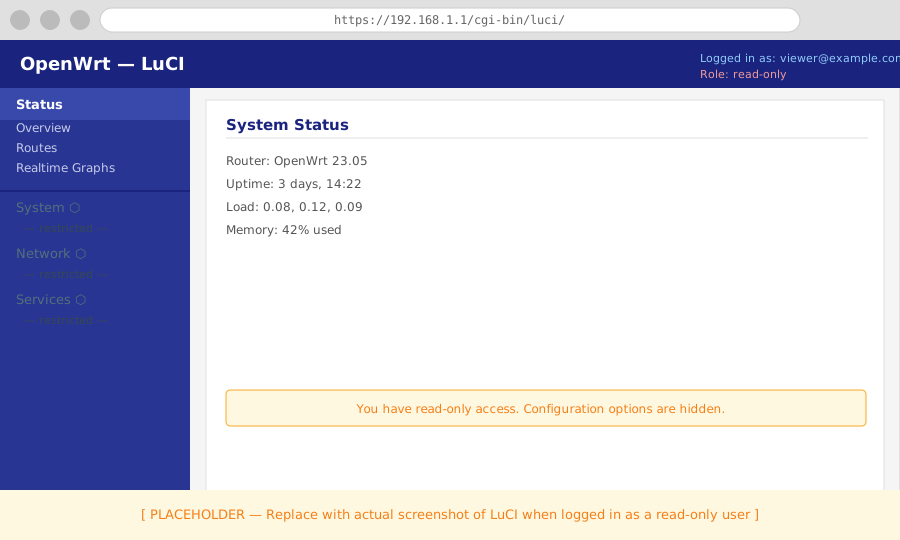
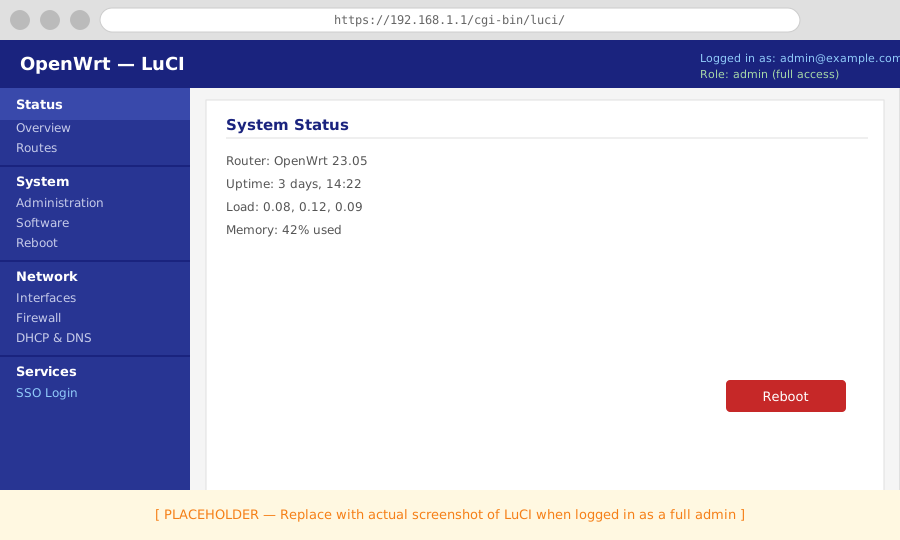
Compare with an admin session where the full menu is visible:
Group-based access
If your IdP returns a groups claim, you can match roles by group instead of (or in addition to) individual email addresses. Ensure the groups scope is included in your IdP client configuration and that the scope option in the router config includes it:
Navigate to Services > SSO Login. In Settings, update Scopes to openid profile email groups and click Save & Apply.
uci set luci-sso.default.scope='openid profile email groups'
uci commit luci-sso
Then configure roles by group:
Navigate to Services > SSO Login and scroll to the Users section.
Click Add, enter ops_admin as the role name, then fill in the modal:
- Groups:
network-ops - Read Access:
* - Write Access:
*
Click Save.
Click Add again, enter sec_viewer, then fill in the modal:
- Groups:
security-team - Read Access:
luci-base,luci-mod-status
Click Save, then Save & Apply.
# Full admin for the ops team
uci set luci-sso.ops_admin=role
uci add_list luci-sso.ops_admin.group='network-ops'
uci add_list luci-sso.ops_admin.read='*'
uci add_list luci-sso.ops_admin.write='*'
uci commit luci-sso

# Read-only for the security team
uci set luci-sso.sec_viewer=role
uci add_list luci-sso.sec_viewer.group='security-team'
uci add_list luci-sso.sec_viewer.read='luci-base'
uci add_list luci-sso.sec_viewer.read='luci-mod-status'
uci commit luci-sso
A user who is a member of both groups gets the combined permissions of both roles.
Multiple roles with combined permissions
Permissions from all matched roles are merged. A user who matches both a read-only role and a role with write access to luci-mod-network ends up with the union of both:
config role 'viewer'
    list email 'charlie@example.com'
    list read 'luci-base'
    list read 'luci-mod-status'

config role 'network_editor'
    list email 'charlie@example.com'
    list read 'luci-mod-network'
    list write 'luci-mod-network'
Charlie can view status, view network settings, and edit network settings — but cannot reboot or touch system configuration.
Verify a role is working
After committing configuration, test with:
# Confirm the service is enabled and config is valid
curl -sk https://localhost/cgi-bin/luci-sso?action=enabled
# Expected: {"enabled":true}
Then log in as the user in question and confirm the LuCI navigation matches what you expect. If a user is denied despite correct credentials, check the log for USER_NOT_AUTHORIZED (the line before it will say "matched no roles" if the issue is role mapping):
Navigate to Status > System Log and filter for luci-sso.
logread -e luci-sso | tail -20
If you see USER_NOT_AUTHORIZED, the user's email or group claims do not match any configured role, or the matched role has no read or write entries. Verify the exact claim value the IdP is sending — email addresses are matched case-insensitively, but must otherwise be exact.
Reference
- All UCI options are documented in the UCI Configuration Reference.
- Error codes from role evaluation are described in Log Messages.