How to Install luci-sso
This guide describes how to install the luci-sso package and its required dependencies on your OpenWrt router.
1. Choose a Crypto Backend
luci-sso requires a native crypto bridge to handle secure tokens. Use mbedTLS unless you have a reason not to — it is lightweight and already present on most OpenWrt systems. Use wolfSSL as an alternative lightweight option, or OpenSSL if the router already uses it for other services such as VPNs.
2. Install the Package
Choose your preferred method below to install the .ipk file.
- Log in to your router's LuCI web interface.
- Navigate to System -> Software.
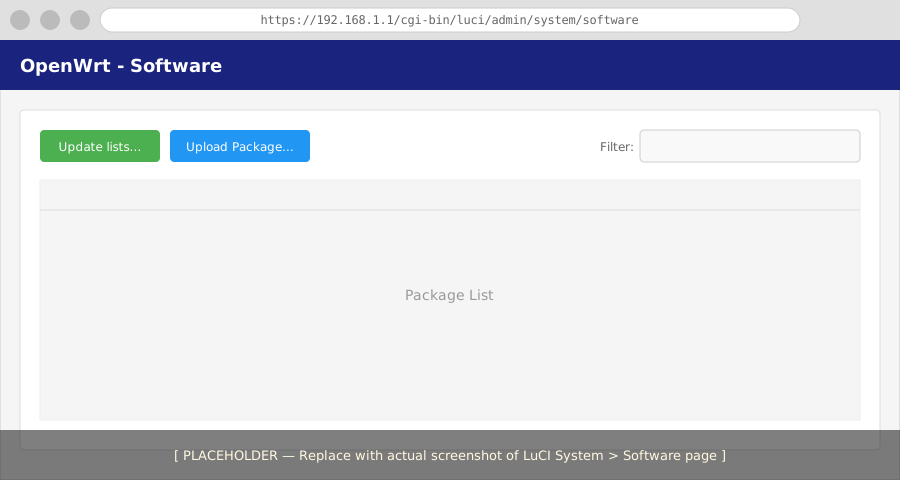
- Click Update lists... to refresh package information.
- Click Upload Package... and select your local
luci-ssofile. - Installation: When prompted, confirm the installation.
- Backend: If
luci-sso-crypto-mbedtlsis not automatically installed, search for it in the Filter box and install it manually.
- Upload the Package: Copy the
.ipkfile to your router (e.g., viascp). If you used thedevenvbuild, the path will look like this:scp -O bin/lib/<ARCH>/<VERSION>/packages/luci-sso*.ipk root@192.168.1.1:/tmp/ - Install via opkg: Run the following commands on the router:
opkg update opkg install /tmp/luci-sso*.ipk - Verify Backend: By default,
opkgwill attempt to pull inluci-sso-crypto-mbedtls. To use a different one:opkg install luci-sso-crypto-wolfssl
3. Verify the Installation
After installing, check that the luci-sso service is responsive and active.
Navigate to the following URL in your browser:
https://192.168.1.1/cgi-bin/luci-sso?action=enabled
It should return a JSON response: {"enabled": true}.
You can simulate a web request directly from the SSH terminal to verify the service is alive:
# On the router
QUERY_STRING="action=enabled" /www/cgi-bin/luci-sso
Expected Output:
Status: 200 OK
Content-Type: application/json

{"enabled": true}
Next Steps
Configure luci-sso with an identity provider:
- Your First SSO Login: Public IdP — Google. Requires a domain name and a publicly trusted certificate.
- Your First SSO Login: Self-hosted IdP — Pocket ID on your LAN. No public infrastructure required.
If you already know which provider you are using, go directly to the How-to Guides for provider-specific configuration.