Your First SSO Login: Public IdP
In this tutorial, we will enable single sign-on on your OpenWrt router using Google as the identity provider. By the end, we will have replaced the router's password prompt with a "Login with SSO" button and confirmed full admin access to LuCI.
What we will build
                                      ┌──────────────────────────────┐
┌──────────────────────────────┐      │ Authorization Required       │
│ Authorization Required       │      │   Username [              ]  │
│   Username [              ]  │  =>  │   Password [              ]  │
│   Password [              ]  │      │                  < Log in >  │
│                  < Log in >  │      │            — or —            │
└──────────────────────────────┘      │      < Login with SSO >      │
                                      └──────────────────────────────┘
The password login remains available as a fallback at /cgi-bin/luci/admin/ — SSO is additive, not a replacement.
Before we start
We need:
luci-ssoinstalled on the router. If not, follow How to Install luci-sso first.- A Google account and access to Google Cloud Console.
- A domain name pointing to the router's public IP (e.g.
router.example.com). - LuCI accessible over HTTPS with a publicly trusted certificate (e.g. Let's Encrypt) at that domain.
Why a trusted certificate is required
After login, Google redirects the browser back to the router's callback URL. That URL must use HTTPS with a certificate the browser already trusts. A self-signed certificate will cause the browser to block or warn on the redirect, breaking the login flow mid-way. Do not proceed without a valid certificate.
If the router does not yet have a domain name and a trusted certificate, configure those first before continuing.
Step 1: Register a client with Google
We need to tell Google that our router is allowed to request user logins.
- Open the Google Cloud Console and sign in.
- Create a new project: click the project dropdown at the top, then New Project. Name it anything — "Home Router" works fine.
- In the left sidebar, go to APIs & Services > OAuth consent screen.
- Choose External.
- Fill in an app name (e.g. "LuCI Router") and your email for the support and developer contact fields.
- Click through to Save and Continue on each screen.
- Go to APIs & Services > Credentials > Create Credentials > OAuth client ID.
- Application type: Web application.
- Name: LuCI Router.
- Authorized redirect URIs:
https://router.example.com/cgi-bin/luci-sso/callback— replace with your actual domain. - Click Create.
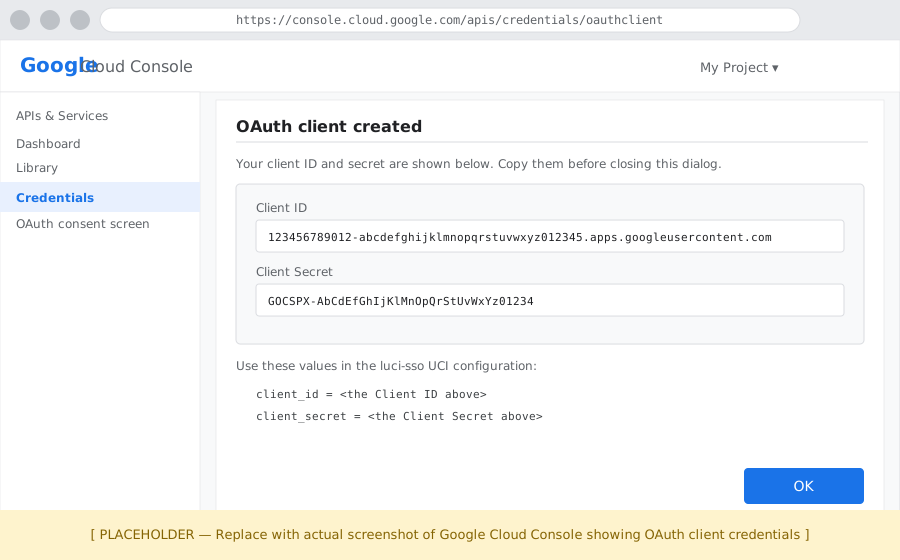
Google will display the Client ID and Client Secret. Copy both.
Step 2: Configure luci-sso
Navigate to Services > SSO Login.
Fill in the Settings section with the values from Step 1:
| Field | Value |
|---|---|
| Enable SSO | On |
| Issuer URL | https://accounts.google.com |
| Client ID | Our Client ID from Step 1 |
| Client Secret | Our Client Secret from Step 1 |
| Redirect URI | https://router.example.com/cgi-bin/luci-sso/callback |
| Scopes | openid profile email |
| Clock Tolerance | 60 |
The Redirect URI must exactly match what we entered in Google Cloud Console.
Scroll to the Users section, click Edit on the admin role, add our Gmail address to Email Addresses, and click Save.
Click Save & Apply.
Prefer the command line?
The same configuration can be done over SSH. See How to Connect luci-sso to Google for the UCI equivalents.
Step 3: Confirm the service is running
Before opening a browser, verify the configuration took effect:
curl -s https://router.example.com/cgi-bin/luci-sso?action=enabled
Expected response:
{"enabled": true}
If we see {"enabled": false}, verify that Enable SSO is toggled on in Services > SSO Login and that we clicked Save & Apply.
Step 4: See the SSO button
Navigate to https://router.example.com/cgi-bin/luci/. The login page should show a "Login with SSO" button above the standard fields.
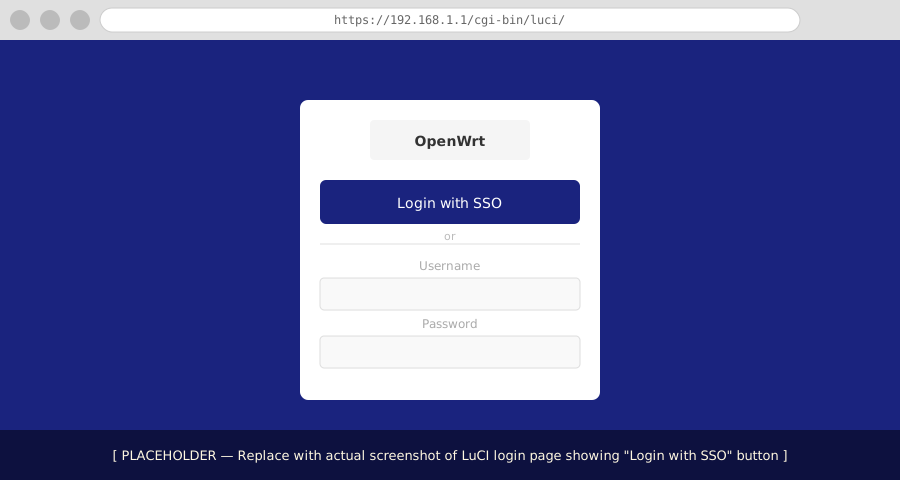
If the button is not there, clear the browser cache and reload. If it still does not appear, check the system log:
Navigate to Status > System Log and filter for luci-sso.
logread -e luci-sso | tail -20
Step 5: Log in
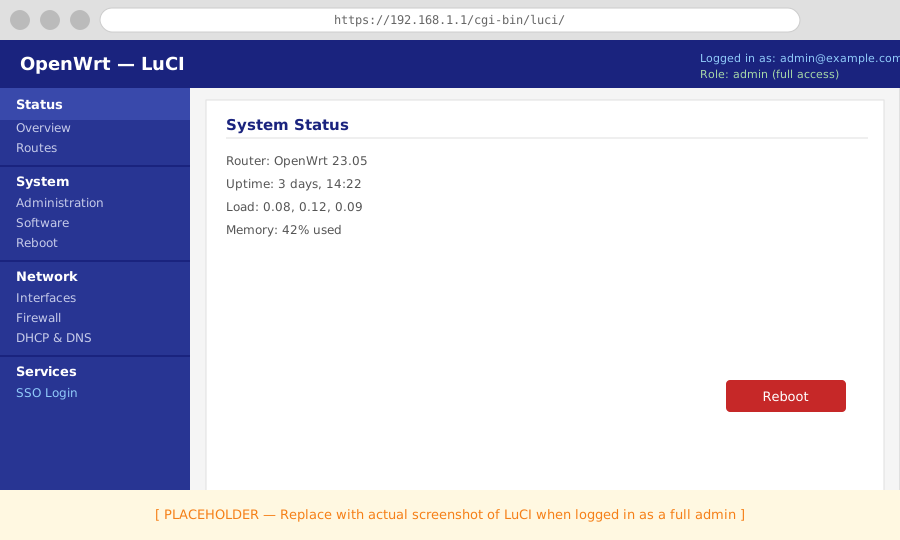
Click Login with SSO. The browser redirects to Google's sign-in page. Sign in with the Google account whose email we added to the admin role in Step 2.
After authenticating, Google redirects back to the router. The router exchanges the authorization code for tokens, validates them, matches the email to the admin role, and issues a LuCI session.
What we just built
- Google authenticates users; the router never sees their password.
- The authorization code that travels through the browser is short-lived and bound to a PKCE verifier — it cannot be replayed.
- The Google email is matched to the
adminrole, which grants full read and write access to LuCI. - The standard username/password login still works at
/cgi-bin/luci/admin/as a fallback.
Next steps
- Restrict access or add more users: How to Configure Role-Based Access Control
- Try a self-hosted IdP instead: Your First SSO Login: Self-hosted IdP
- Understand what happened under the hood: About the OIDC Login Flow