Household · How-to
Point your Supernote at Inkhold#
Sign the tablet in to Inkhold instead of Supernote’s cloud. You need Inkhold’s
address, for example http://192.168.1.20:8089, and an Inkhold account.
- Copy the tablet’s folders to another computer first. Sync runs both ways, and Inkhold is in beta.
- On the tablet, open Settings → Drive, and next to Private Cloud tap Log in.
- After
http://, type the address without its port,192.168.1.20. Type the port,8089, in Port. Leave Enable HTTPS off, unless you set Inkhold up behind HTTPS. Tap Connect. - Enter your Inkhold email and password, and tap Log in.
- If the tablet asks how to treat its digest and to-do data, choose Retain locally. Delete locally removes them from the tablet.
- Sync from the tablet’s top bar. Your notebooks appear in the library in the browser.
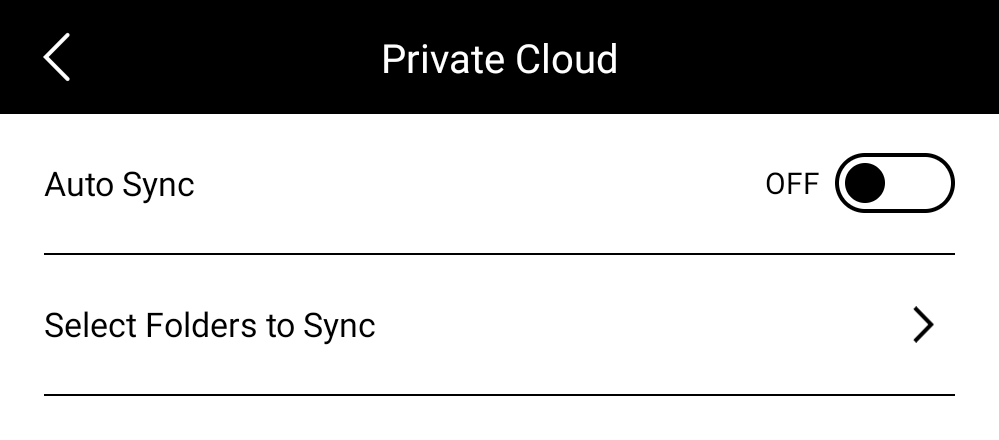
To sync without thinking about it, open Settings → Drive → Private Cloud and turn on Auto Sync. The tablet then sends each change as you make it, and receives what you change in the browser within a second or two.
When the server is new or restored#
Each Inkhold library has its own identity. A tablet that signs in to a new or restored server notices, forgets what it synced before and syncs from scratch, uploading what the server is missing rather than deleting it. Afterwards, open Settings → Drive → Private Cloud again: Auto Sync is off, and the folders to sync may need ticking again.
Over the internet, put Inkhold behind HTTPS first. On your home network, plain HTTP is fine.