Household · How-to
Use To-Do in the browser#
See your tablet’s To-Do lists and tasks in the browser, and change them there: the tablet picks the changes up at its next sync. To-Do sync must be turned on first.
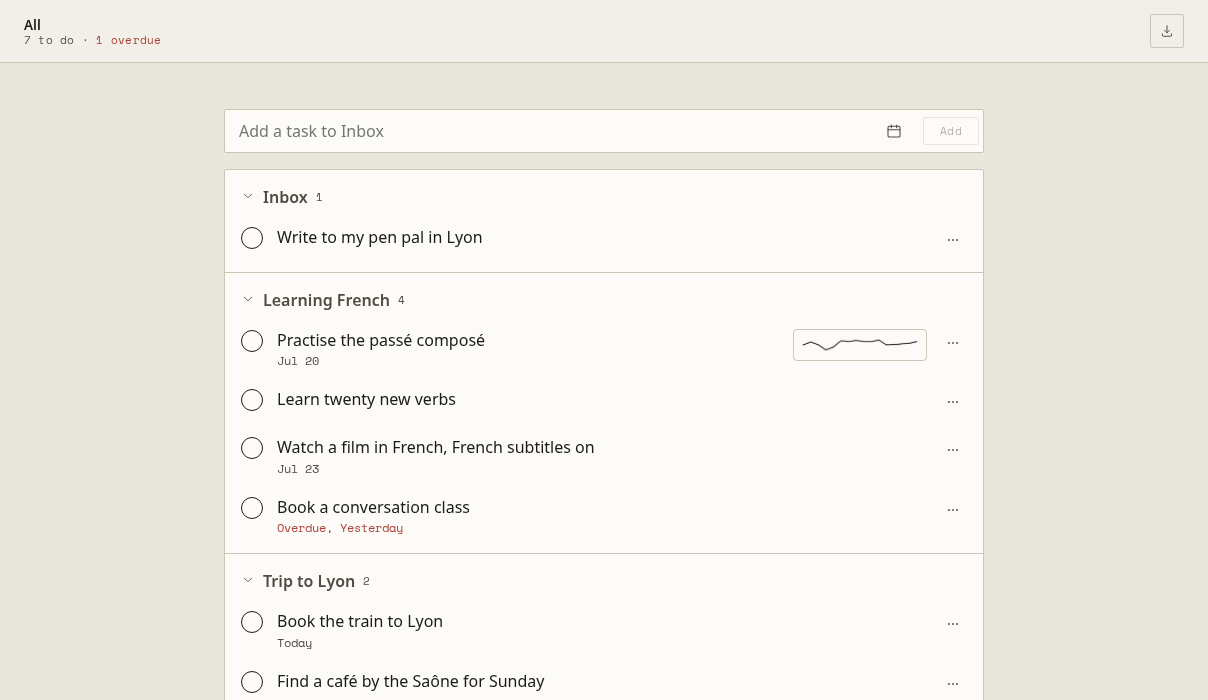
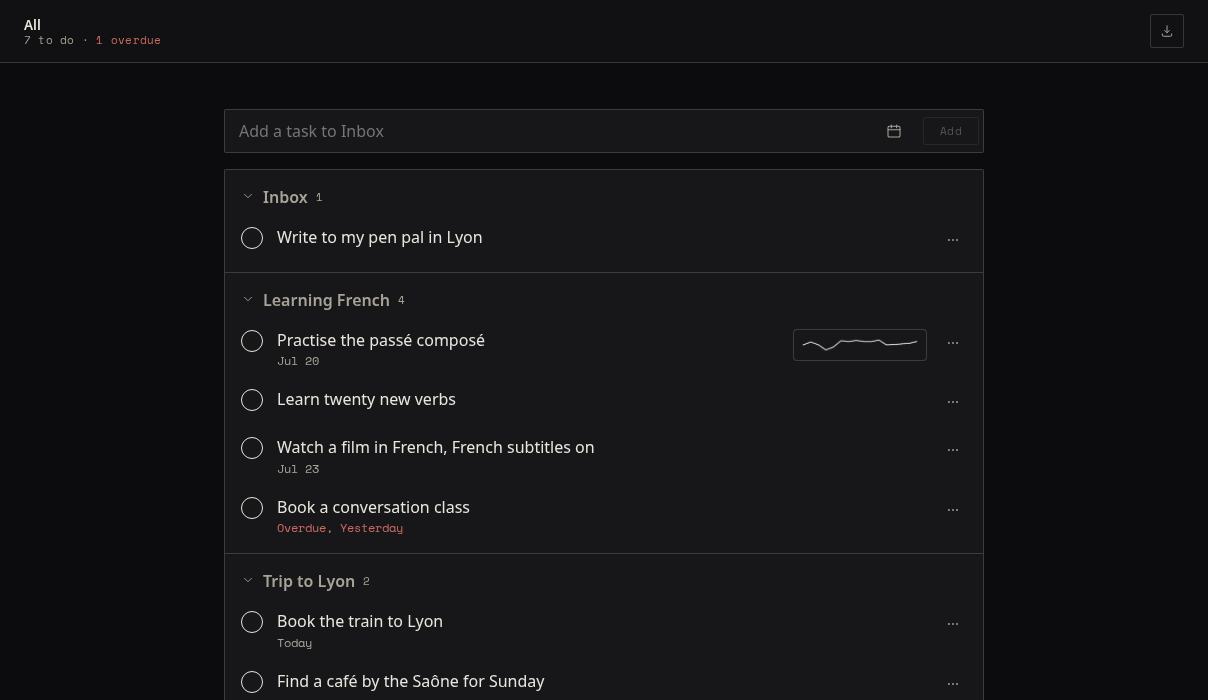
Choose To-Do in the library’s left rail. Inbox, Planned, All and Completed sit under it; plain To-Do shows every list.
- Add a task: type in the box at the top and choose Add. The calendar beside it gives it a day.
- Tick it off: the circle in front of it.
- Change it: its … menu has Rename, Move to…, a day, Move up, Move down and Delete. Or drag it by its handle.
- A task written on a notebook page shows the handwriting it was written in: choose it to open that page.
- Download saves the list: Tasks, a calendar file (
.ics) other apps import, or Plain text.
Until the tablet has synced a change you made, the page says it is waiting for the tablet.
Keyboard shortcuts, under the list, shows the keys for all of this.